

1Do a quick diagnostic check
Temporarily increase pointer size in Windows Accessibility settings and see if the cursor colors change. If they do, the issue is Windows rendering behavior, not your source file.
Loading...
If your custom cursor looks washed out, gray, or neon on an HDR display, you are probably seeing a Windows HDR rendering quirk, not a bad .cur file.
Upload your .cur file in Cursor Builder, enable HDR Compensation, preview the result, and export a version that looks right without using an oversized cursor.
Fix in Cursor BuilderTemporarily increase pointer size in Windows Accessibility settings and see if the cursor colors change. If they do, the issue is Windows rendering behavior, not your source file.
Import your .cur file into Cursor Builder, enable HDR Compensation (Washed-Out Color Fix), preview on light and dark backgrounds, and export the compensated cursor.
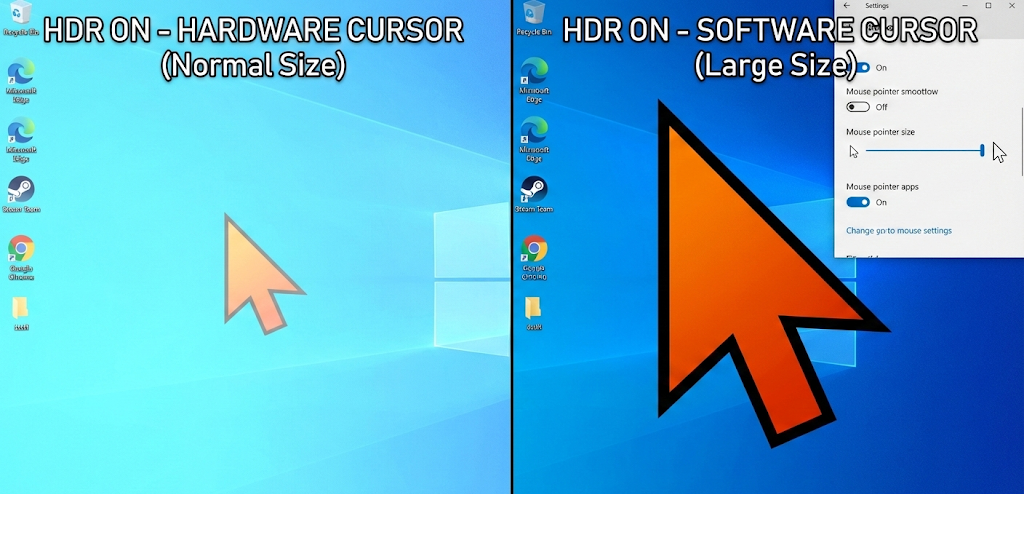
Windows often draws the pointer through a hardware cursor path for very responsive movement.
On some HDR setups, that path does not match the same color handling used for the rest of the desktop.
HDR can exaggerate the mismatch, so cursor colors may look desaturated, gray, or too bright.
That means your cursor asset can be valid while still looking wrong on-screen.
Increasing pointer size can push Windows onto a different rendering path, which is why colors may suddenly look better.
Useful for confirming the cause, but most people do not want to keep a giant cursor every day.
Use MouseTesting Cursor Builder HDR Compensation to correct output while keeping your preferred pointer size.
This gives you a compensated export you can apply directly, without relying on size side effects.
First create a compensated cursor in the builder, then validate how it looks in motion.
Compare current mouse categories and pick options that match your workflow, visibility needs, and performance goals.
Open Mouse Buying GuideUsually no. If the same file looks fine in SDR or changes when pointer size changes, the issue is rendering path behavior, not file encoding.
Not really. It is a quick way to confirm the problem, but most users do not want a giant cursor all day.
Import the .cur file into Cursor Builder, enable HDR Compensation, and export a compensated version for normal use.
Display mode, drivers, and Windows rendering behavior can change after updates. Re-check in Cursor Builder and export a fresh compensated file if needed.
Your cursor file is usually fine. The mismatch is usually how Windows renders the cursor on HDR.